Sometimes, users find it difficult to understand and execute Outlook Search with each updated version of the application. If you just upgraded your desktop email client to the latest version, you also might be facing ‘MS Outlook 2016 Search not working’ issues.
Since Outlook is a most popular email client being used to send and receive bulk emails in a significant number of organizations as well as a personal level; it must be maintained and upgraded on a regular basis.
When Outlook Search Shows ‘No Results Found’ Status
In some cases, the Search algorithm integrated into MS Outlook does not work appropriately as desired. If this is the case, all you need to do is just stay calm and try some resolution methods to fix Outlook 2016 instant search error.
Undoubtedly, ‘Search’ is one of the significant features the application offers. It not only helps to perform a particular search following a defined criterion but also helps to navigate through emails and other mailbox components quite efficiently. The search algorithm might incorporate different kinds of malfunctions such as entirely improper outputs or no/ blank results.
When the tool stops functioning properly; it would either display search results up to a particular date or it will show that there are items based on search criteria waiting to be indexed in the output panel. In this case, there could be an error or issue with Windows Indexing services.
There could be many problems in Outlook 2016 responsible for this issue and so are the solutions.
Outlook Marked for Indexing
Outlook’s Search operation usually comes out with blank results because Outlook 2016 search stopped working on your system. There are possibilities that Outlook might not be able to check its data files for indexing. However, Microsoft Outlook 2016 provides an easy way to analyze if the mailbox is indexed or not. This can be done by the following steps:
- Go to ‘Search’ option by selecting ‘File’, then to ‘Options’ and click ‘Search.’
- Click on ‘Indexing Options’ and then select ‘Modify.’
- It opens ‘Indexed Locations’ window, you can check if the Outlook data file is being indexed.
- Alternatively, you can either select the option to index MS Outlook completely, or you can quit the indexing option if desired.

Note: In previous versions of MS Outlook 2016, users are allowed to select particular OST or PST files to Index, whereas, in 2016 edition, you can choose to index complete application.
While checking if the Outlook files are being Indexed or not, you must also disable and then enable the application from the ‘Indexing Options’ window. Deselect Outlook by checking the checkbox and close the app. Wait for 5 minutes and then open Task Manager. Check if Outlook.exe is still running in processes tab. Next go back to select MS Outlook for indexing.
OST/ PST Corruption
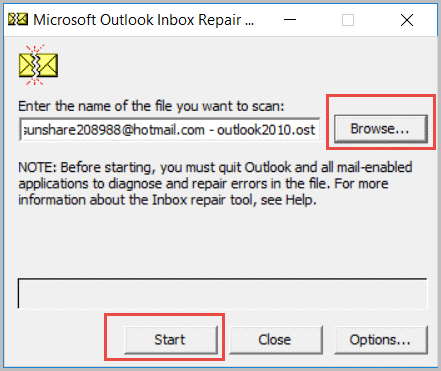
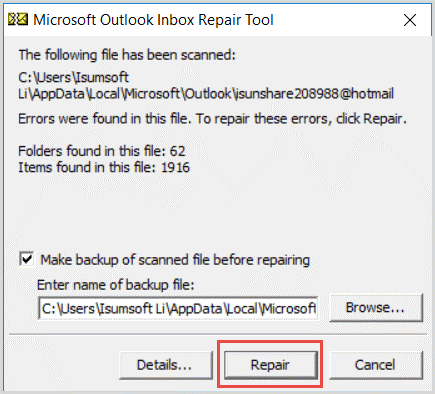
Corruption could be a possible reason behind malfunctioning of the instant Search not showing recent emails feature. Analyze the file and repair it using the ScanPST.exe tool. This is the popular ‘Inbox Repair Tool’ integrated with all the versions of MS Outlook email client. In File Explorer window, open ‘This PC’ and then type ‘ScanPST.exe’ in the Search box. Running this tool will repair any existing damaged or corrupted OST as well as PST on the system.
Rebuilding MS Outlook Index
Rebuilding the index might compel Search- ‘something went wrong’ to work properly. The procedure to rebuild MS Outlook Search Index is:
1. Click on the ‘File’ menu, select ‘Options’ and then choose ‘Search’ available on the left side of the window.
2. Click on ‘Indexing Options’ button and then click on ‘Advanced’.
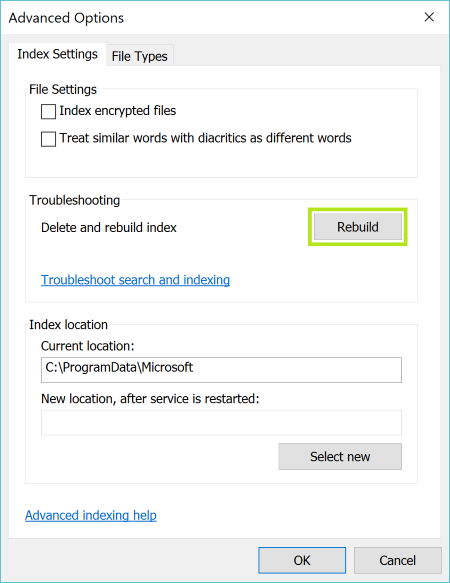
3. In the ‘Advanced Options’ window, select ‘Index Settings’ tab and click on ‘Rebuild’ button
2. Click on ‘Indexing Options’ button and then click on ‘Advanced’.
3. In the ‘Advanced Options’ window, select ‘Index Settings’ tab and click on ‘Rebuild’ button
Points to Remember
- The search feature will not work temporarily, while index rebuilding operation is in the process. It is recommended not to interfere with the application during the process.
- The time duration it takes to rebuild indexes solely depends on system specifications, the number of files to be indexed and volume of data each file incorporates.
- Once the process to rebuild indexes is completed successfully, restart the application and check ‘Search’ functionality.
Though, workaround procedures are always there to recover files from all kind of corruption, these procedures do not ensure the integrity of data. Outlook Mailbox integral components can be lost or deleted accidentally, in case if any mistake occurs. Moreover, rebuilding Outlook indexes via manual process requires the sound technical know-how.
Fix Outlook 2016 Search Issues, or Indexing Options Greyed out Errors
If corruption is the actual reason behind the inappropriate functionality of Outlook ‘Search’ feature; then personal files can be repaired using commercial assistant- Stellar Phoenix Outlook PST Repair software. It repairs PST files and recovers all possible data out of it. Once, the damaged PST file gets recovered, ‘Search’ feature would start working appropriately, after that.
The tool can be utilized in many different scenarios. It can either be used to repair the features of the mail application as in the case of ‘Search’ malfunctioning or it can be used to bring PST files in the accessible state if they get damaged or corrupted for any reason. If the Search feature is not working due to a PST file that is encrypted, the tool can also help to resolve this issue as it supports encrypted Outlook data file recovery.
In a case of PST recovery, the tool offers to save the recovered Outlook data files to EML, MSG, RTF, PDF and HTML file formats. All of the given files can be accessed by various email clients without any dedicated platform. It is compatible to execute over all the versions of MS Outlook including 2016 editions.